
Task guide · social content
Use this workflow when the image has to earn attention quickly in a feed. Start from the message and focal subject, then choose a portrait, square, or landscape canvas that matches the destination.
Cost and control
The current estimate stays beside Generate. Choosing a workflow fills the composer but never starts a job or spends credits.
Z-Image
What you need
Write the audience, focal subject, message, and visual mood. Treat any words inside the image as a layout requirement that needs a final proofread.
- The audience and the one idea the image should communicate
- A subject, color direction, and visual hierarchy for the first glance
- The platform placement and its intended portrait, square, or landscape ratio
What you get
A social-ready still draft with a deliberate crop and a visual direction you can remix when the first hierarchy is not right.
- A live text-to-image result with selectable output quality
- A ratio chosen for the feed, story, cover, or campaign slot
- A visual draft to review for text, contrast, and safe space
How to make a social image
- 01
Lead with one message
Write the main idea in plain language and keep secondary details out of the focal area.
- 02
Choose the crop
Select the ratio that matches the placement before you add composition and spacing instructions.
- 03
Direct the hierarchy
Tell the model where the subject, headline area, and breathing room should sit.
- 04
Proof the frame
Check contrast, margins, faces, hands, and every word before handing the image to a campaign or post.
Check before you publish
- The subject remains clear when the image is viewed as a small feed thumbnail.
- The focal area has enough contrast and does not sit under platform controls.
- Any headline or callout is proofread against the approved copy.
What to keep in mind
- Image models can alter or add words; do not use generated typography as the final source of truth.
- Busy prompts with many competing subjects often weaken the first-glance hierarchy.
- Social platforms may crop the same asset differently; preview the destination placement.
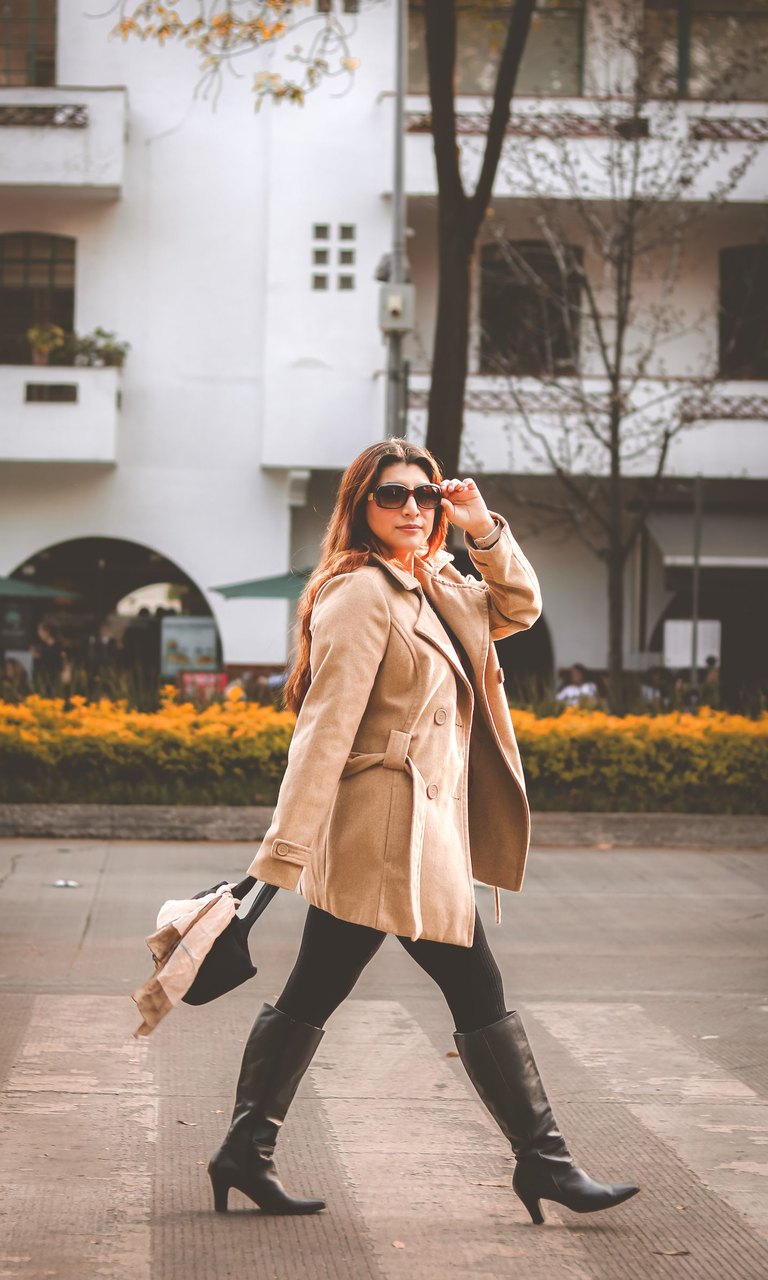
Example · Portrait social concept
A portrait concept for a feed or story: set the ratio early, then keep the subject and message hierarchy simple.
Questions about social images
Can MediaMuse create a vertical social post?
The live image recipes expose supported portrait ratios in Composer. Choose the destination ratio before generating and review the crop at the final size.
How do I keep the design readable?
Name one focal subject, reserve empty space for copy, and specify contrast and hierarchy. Always proofread generated text afterward.
Can I edit an existing campaign image?
Yes. Use Image to Image with a starting image you are allowed to edit, then describe the exact change rather than asking for a completely new composition.